Troubleshooting
Introduction
This guide helps you resolve common issues with GuacamoleID. Find solutions to problems with face recognition, camera setup, block screen behavior, and more.
Face Recognition Issues
Not Being Recognized
Symptoms: GuacamoleID doesn't recognize your face, or recognition is inconsistent.
Solutions:
-
Check Lighting
- Ensure your face is well-lit from the front
- Avoid backlighting (bright windows behind you)
-
Camera Position
- Position yourself directly in front of the camera
- Keep your face within 1-2 feet of the camera
- Ensure nothing obstructs the camera view
-
Profile Quality
- Ensure you looked directly at the camera during registration
-
Appearance Changes
- Re-register if you've significantly changed your appearance
- New glasses, facial hair, or hairstyle may affect recognition
False Recognition (Recognizing Wrong Person)
Symptoms: Guacamole unlocks for unauthorized users.
Solutions:
- Review and delete any incorrect profiles
- Re-register with better lighting conditions
- Enable liveness protection
- Increase the recognition threshold in settings
Recognition Too Slow
Symptoms: Takes several seconds to recognize and unlock.
Solutions:
- Ensure adequate lighting on your face
- Check CPU usage - close unnecessary applications
- Try reducing camera resolution
- Disable unnecessary features to improve performance
Camera Problems
Camera Not Detected
Symptoms: GuacamoleID shows "No camera found" or camera dropdown is empty.
Solutions:
-
Physical Connection
- Ensure external cameras are properly connected
- Try a different USB port
- Check cable connections
-
Driver Issues
- Update camera drivers in Device Manager
- Reinstall camera drivers
- Check for Windows updates
-
Permissions
- Ensure Guacamole has camera permissions
- Go to Windows Settings > Privacy > Camera
- Allow apps to access your camera
-
Other Applications
- Close other apps that might be using the camera
- Restart Guacamole
Camera Shows Black Screen
Symptoms: Camera is selected but preview shows black.
Solutions:
- Check if a physical privacy shutter is closed
- Try a different camera if available
- Restart Guacamole
- Check camera in another application to verify it works
- Update camera drivers
Depth Camera Not Working
Symptoms: IR camera not available or not providing infrared image.
Solutions:
-
Hardware Check
- Verify your device has an IR camera
- IR cameras are usually separate from RGB cameras
- Look for a small lens near the main camera
-
Driver Requirements
- Install Windows Hello drivers
- Update Intel RealSense drivers if applicable
- Check manufacturer's support page
-
Settings Configuration
- Enable Depth camera in Guacamole settings
- Select the correct Depth camera from the dropdown
Virtual Camera Issues
Symptoms: Virtual camera not appearing in other applications.
Solutions:
- Ensure virtual camera feature is enabled
- Restart the application that needs to use the virtual camera
- Check that virtual camera drivers are installed
- Verify your subscription tier includes virtual camera
Block Screen Issues
Block Screen Activates Too Frequently
Symptoms: Screen blocks when you're still present.
Solutions:
-
Adjust Blocking Speed
- Go to Settings > General
- Change blocking speed to "Slow" or "Medium"
-
Improve Detection
- Ensure good lighting on your face
- Check camera angle and positioning
Block Screen Won't Activate
Symptoms: Screen doesn't block when you leave.
Solutions:
- Verify Guacamole is running (check system tray)
- Check that block screen feature is enabled
- Ensure camera is functioning and selected
Can't Unlock the Block Screen
Symptoms: Block screen won't recognize you to unlock.
Solutions:
-
Position Yourself Properly
- Face the camera directly
- Ensure adequate lighting
-
Use Fallback Method
- Press any key to go to Windows lock screen
- Log in with Windows password
-
If Completely Locked Out
- Restart the computer
- Log in with Windows credentials
- Re-register your face profile
Application Issues
Guacamole Won't Start
Symptoms: Application doesn't launch or crashes on startup.
Solutions:
-
Run as Administrator
- Right-click Guacamole
- Select "Run as administrator"
-
Check System Requirements
- Verify your system meets minimum requirements
- Update graphics drivers
- Ensure Windows is up to date
-
Reinstall Application
- Uninstall Guacamole
- Download latest version
- Install fresh
-
Check Logs
- Contact support with log files
High CPU Usage
Symptoms: GuacamoleID using excessive CPU resources.
Solutions:
- Enable power saver mode
- Reduce camera resolution
- Close unnecessary background applications
- Update to the latest version
Application Freezing
Symptoms: GuacamoleID becomes unresponsive.
Solutions:
- Wait a few seconds - it may be processing
- Force close via Task Manager
- Restart the application
- Check for conflicting software
- Update graphics and camera drivers
Account & Subscription Issues
Can't Log In to Account
Symptoms: Unable to sign in to your Guacamole account.
Solutions:
- Verify email and password are correct
- Use "Forgot Password" to reset password
- Check internet connection
- Try logging in via web portal first
- Contact support if account is locked
Subscription Not Recognized
Symptoms: App shows free tier despite having subscription.
Solutions:
- Sign out and sign back in
- Check subscription status in web portal
- Verify payment method is valid
- Contact support if payment was processed
Features Missing
Symptoms: Expected features not available in the application.
Solutions:
- Verify your subscription tier includes the feature
- Update to the latest version
- Sign out and sign back in
Sync & Cloud Issues
Profiles Not Syncing
Symptoms: Face profiles not appearing on other devices.
Solutions:
-
Check Sync Settings
- Ensure biometric sync is enabled
- Go to Settings > Account > Biometric Sync
-
Verify Account
- Confirm you're signed into the same account
- Check internet connection
-
Manual Sync
- Try triggering a manual sync from settings
- Wait a few minutes for sync to complete
Performance Optimization
Improving Battery Life
- Enable Power Saver mode (Eco or Custom)
- Set shorter inactivity timeouts
- Enable "Turn Off AI and Cameras" on inactivity
Reducing Resource Usage
- Disable features you don't use
- Enable power saving mode
- Close unnecessary background applications
Improving Recognition Speed
- Ensure good lighting
- Keep face profiles up to date
- Disable liveness for faster (but less secure) recognition
Getting Help
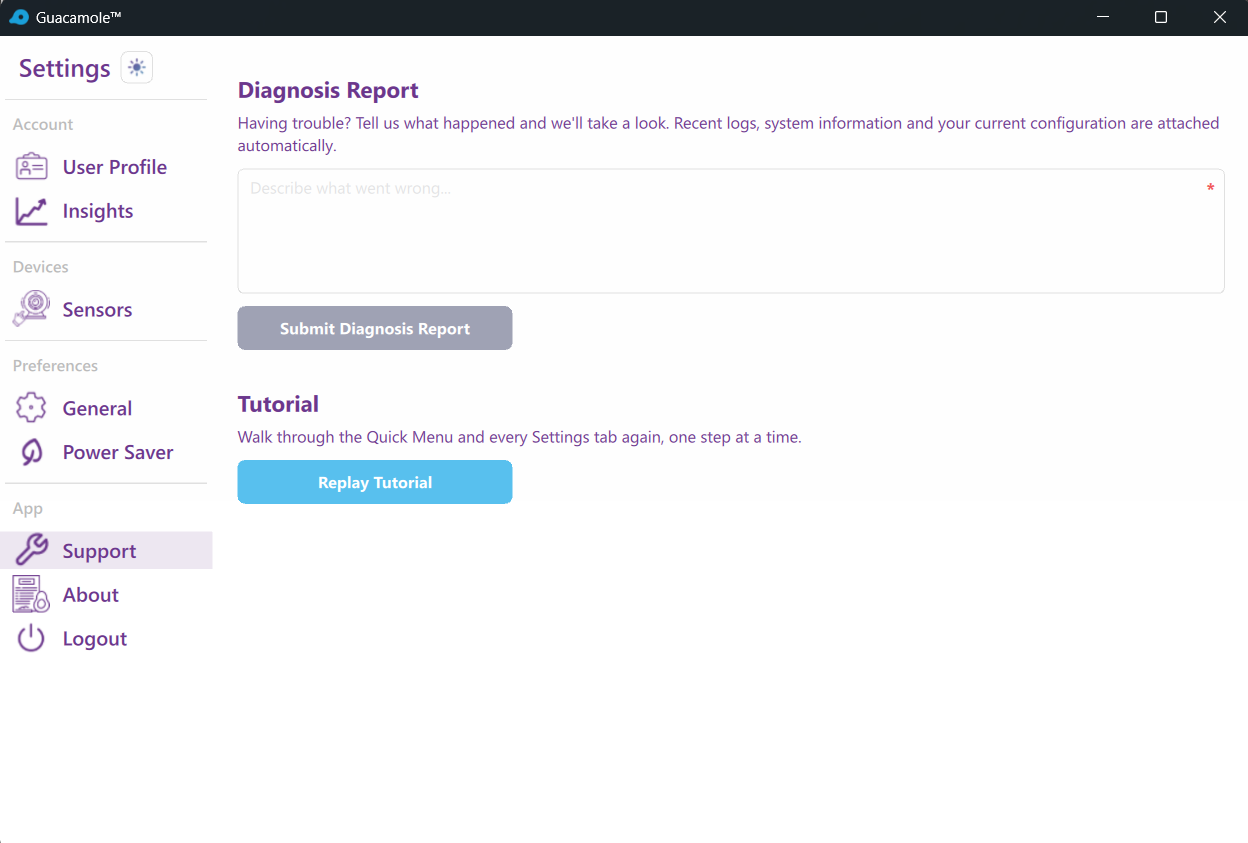
Collecting Diagnostic Information
When contacting support, gather:
- Application version (Settings > About)
- Operating system and version
- Camera model and driver version
- Description of the issue
- Steps to reproduce the problem
- Any error messages displayed
Contacting Support
- Email: support@guacamole.ai
- Web Portal: Submit a ticket via the support section
- Knowledge Base: Check online documentation first
Reporting Bugs
- Document the exact steps to reproduce
- Note any error messages
- Submit via the feedback option in the app