Sensors
Introduction
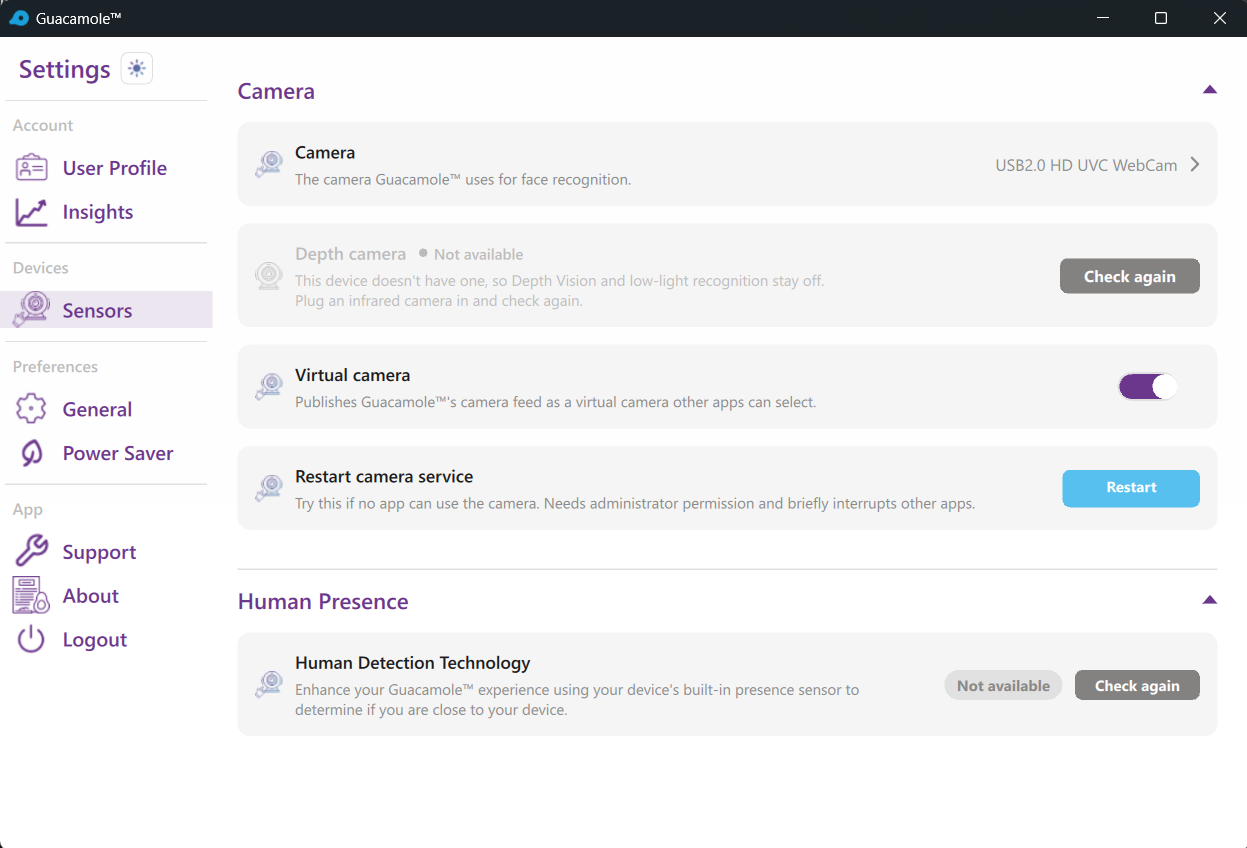
Guacamole relies on camera input for facial recognition. The application supports multiple camera types, including standard RGB webcams, infrared (IR) cameras, and virtual cameras. Proper camera configuration ensures reliable face recognition and optimal performance.
Camera Types
RGB Camera
Your main webcam used for standard face recognition. This is typically the built-in laptop camera or an external USB webcam.
Best for: General use in well-lit environments
Infrared Depth Camera
A specialized camera that captures infrared light. Many modern laptops include IR cameras for Windows Hello compatibility.
Best for: Low-light environments, enhanced security, liveness detection
Virtual Camera
A software-based camera that can be used for privacy or testing purposes.
Best for: Privacy mode, development testing
Selecting Your Camera
- Go to Settings > Sensors
- Under Camera, select your preferred webcam from the dropdown
- Click Apply to save changes
The camera preview shows what Guacamole sees. Ensure your face is clearly visible and centered in the frame.
RGB Camera Settings
Primary Camera Options
| Setting | Description |
|---|---|
| Camera Selection | Choose which webcam to use |
Infrared Camera Settings
Depth cameras provide significant advantages for face recognition:
- Works in darkness: No ambient light required
- Better anti-spoofing: Harder to fool with photos
- Consistent lighting: Not affected by room lighting changes
Enabling IR Camera
- Go to Settings > Sensors
- Toggle Depth Camera on
- Select your IR camera from the list
Virtual Camera
Guacamole includes a virtual camera feature that can:
- Provide a privacy-preserving video feed to other applications.
- Show a custom image when face recognition is active.
Virtual Camera Settings
| Setting | Description |
|---|---|
| Enable Virtual Camera | Turn the virtual camera on/off |
Restart Camera Service
If you're struggling with Camera Issues, you can choose this option. Allow the administrator permissions and let Guacamole fix your Camera.
Intel WiFi Sensing Integration
If your device supports Intel WiFi Sensing, Guacamole can use it for presence detection:
- Detects user presence without camera
- Saves power by not using camera for presence checks
- Camera activates only for face recognition
To enable:
1. Go to Settings > Sensors
2. Enable Human Detection Technology.
Camera Positioning Tips
For best recognition results:
- Distance: Position yourself 1.5-3 feet (45-90 cm) from the camera
- Angle: Camera should be at eye level, facing you directly
- Lighting: Ensure your face is evenly lit, avoiding backlighting
- Background: A plain, uncluttered background helps recognition
- Obstructions: Remove items that might block the camera's view
Troubleshooting
Camera Not Detected
- Ensure the camera is properly connected
- Check Device Manager for camera drivers
- Restart GuacamoleID after connecting a new camera
- Try a different USB port (for external cameras)
Poor Recognition Quality
- Clean the camera lens
- Improve room lighting
- Adjust camera resolution settings
- Check for software using the camera simultaneously
Camera Lag or Freezing
- Lower the camera resolution
- Close other applications using the camera
- Check CPU usage - reduce if high
- Disable secondary camera if not needed
IR Camera Not Working
- Verify your device has an IR camera
- Check Windows Hello settings for conflicts
- Disable exclusive control if other apps need access
- Update camera drivers
Virtual Camera Not Appearing in Other Apps
- Restart the application that needs the virtual camera
- Ensure virtual camera is enabled in GuacamoleID settings
- Some applications may not support virtual cameras