General Settings
Introduction
Fine-tune Guacamole™ 's behavior for privacy and performance. Some advanced features are hidden by default. Click the Advanced arrow in the UI to reveal them.
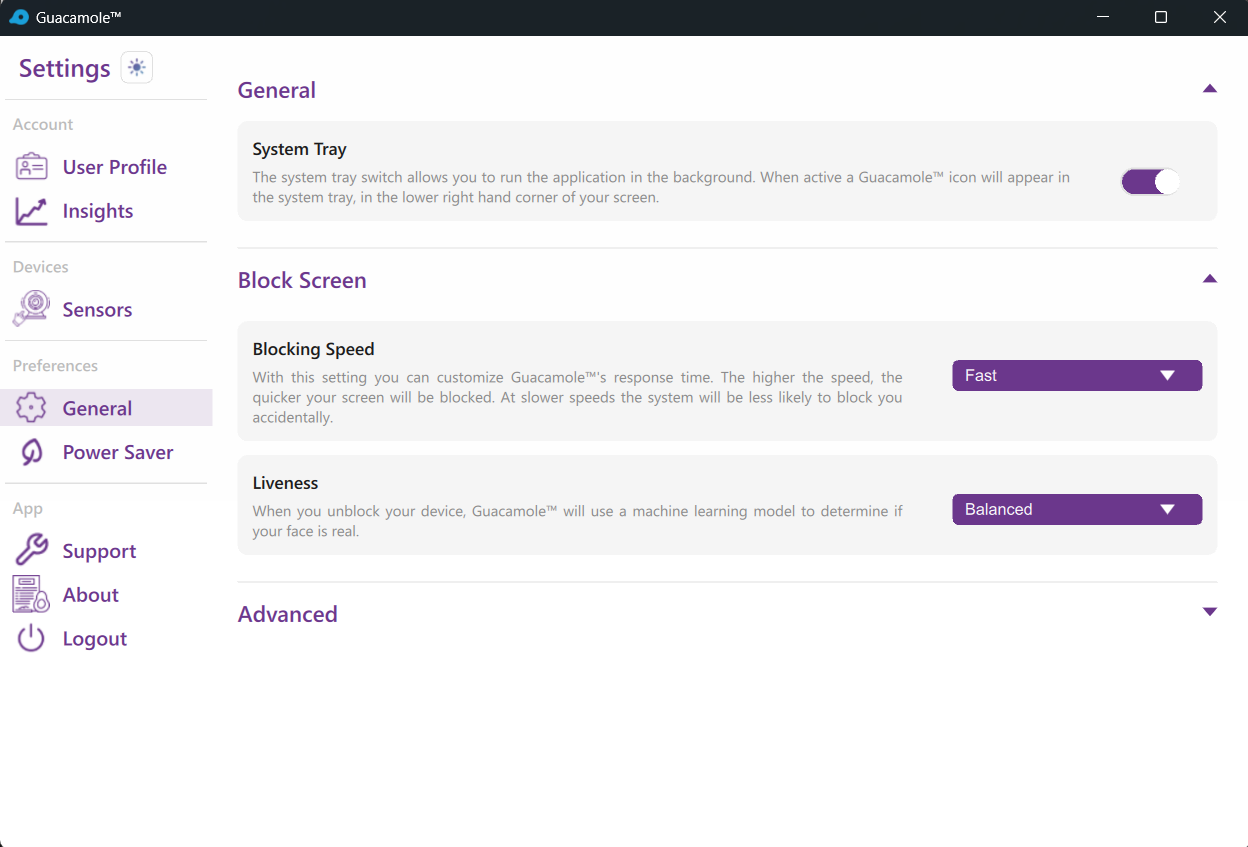
General
The System Tray Option Keeps the System tray button on the quick menu, and when clicked Guacamole keeps running in the background.
Block Screen
How does it work?
Guacamole continuously monitors for your presence using facial recognition. The Block Screen activates when:
- You Walk Away: The camera no longer detects your registered face
- Intruder Detected: An unregistered face appears in front of the camera
- Shoulder Surfing: Someone else is detected looking at your screen (if enabled)
When activated, the Block Screen:
- Covers all open applications and the desktop
- Displays the Guacamole logo and status message
- Shows a live camera preview
- Detects key presses and sends the system to Windows lock screen
Unblocking the Screen
To unlock and return to your desktop:
- Face Recognition: Simply look at the camera - Guacamole will recognize you and unlock automatically
- Windows Login: If face recognition fails, press any key to be taken to the Windows lock screen where you can use your password
The unlock process is seamless - just position yourself in front of the camera and the screen unblocks within seconds.
Blocking Speed
Configure how quickly the screen blocks after losing recognition:
| Speed | Description | Best For |
|---|---|---|
| Slow | Longer delay before blocking | Casual home use |
| Medium | Balanced response time | General office work |
| Fast | Quick blocking | Sensitive environments |
| Very Fast | Immediate blocking | High-security settings |
To change the blocking speed:
1. Go to Settings > Block Screen
2. Select your preferred Blocking Speed
3. Changes take effect immediately
Windows Lock Screen Integration
When the Block Screen is active and a key is pressed:
- Guacamole detects the keypress
- The system transitions to the Windows lock screen
- This provides an additional layer of security
- Users can log in with Windows credentials if face recognition fails
This integration ensures that even if someone bypasses the Guacamole block screen, they still face Windows authentication.
Liveness Protection
The Block Screen includes liveness detection measures to prevent unauthorized access using photos or videos of authorized users. See the Liveness Detection page for detailed information.
Available liveness detection levels:
| Level | Description |
|---|---|
| Off | No liveness (not recommended) |
| Balanced | Passively checks for liveness in the background with no user interaction required. |
| Advanced | Confirms liveness by tracking your gaze as you look at the screen. The strongest protection available, with minimal user interaction. |
| Depth Vision | Uses the IR depth camera to confirm a real face is present. |
Troubleshooting
Block Screen Activates Too Frequently
- Adjust the Blocking Speed to a slower setting
- Ensure your face is well-lit and visible to the camera
- Check camera positioning and angle
Block Screen Won't Unblock
- Ensure adequate lighting on your face
- Position yourself directly in front of the camera
- Clean the camera lens
- Press any key to use Windows lock screen as fallback
Block Screen Appears Briefly Then Disappears
- This indicates momentary loss of recognition
- Improve lighting conditions
- Reduce camera obstructions