Power Saver
Introduction
Guacamole's Power Saver feature helps optimize battery life on laptops while maintaining security. The application can reduce its resource usage during periods of inactivity, extending your battery life without compromising protection.
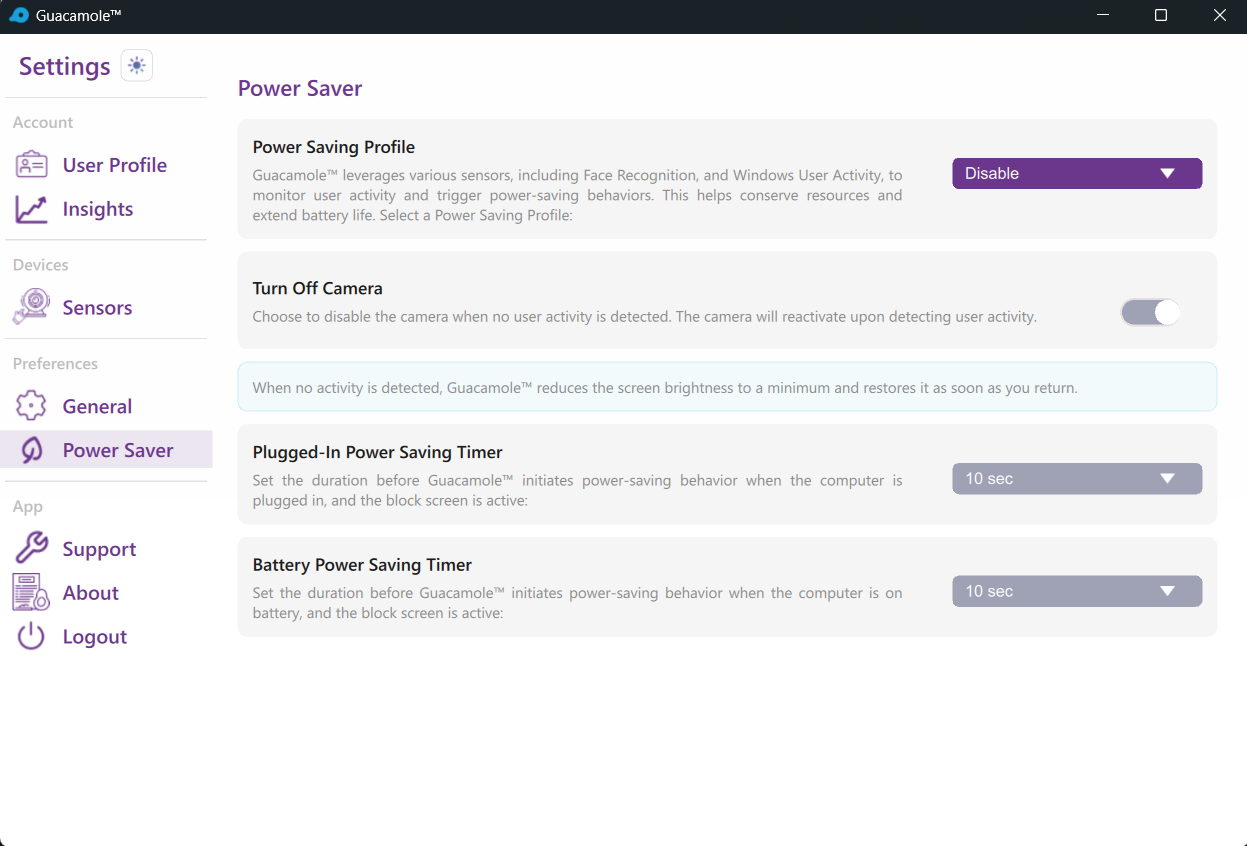
Power Saver Modes
Guacamole offers several power saving modes to match your usage patterns:
Disabled
Power saving features are turned off. Guacamole runs at full capacity at all times.
Best for: Desktop computers, always-plugged-in laptops
Balanced Mode
A moderate approach that reduces resource usage during inactivity while maintaining quick response times. - Best for: General laptop use, mixed work environments
Eco Mode
Aggressive power saving that significantly reduces CPU and camera usage. - Best for: Maximum battery life, travel, working on battery
Custom Mode
Create your own power saving configuration with specific settings. - Best for: Users with specific requirements
Configuring Power Saver
- Go to Settings > Power Saver
- Select your preferred Power Saver Mode
- Configure additional options as needed
- Changes take effect immediately
Inactivity Settings
AC Power (Plugged In)
Configure behavior when connected to power:
| Timeout | Description |
|---|---|
| 2 minutes | Quick power saving activation |
| 5 minutes | Short delay before saving |
| 10 minutes | Moderate delay |
| 15-30 minutes | Standard office settings |
| 45-60 minutes | Extended use without intervention |
DC Power (Battery)
Configure behavior when running on battery:
Generally, shorter timeouts are recommended when on battery to maximize battery life.
Power Saving Actions
When the inactivity timeout is reached, GuacamoleID can perform these actions:
Dim Screen
Reduces screen brightness to save power while keeping the system accessible. - Immediate recovery when activity detected - No authentication required to resume - Saves moderate power
Turn Off AI and Cameras
The most aggressive power saving option: it temporarily disables the AI engine and camera, bringing significant battery savings.
It Requires brief restart of recognition upon wake, best for extended idle periods
Power Saver Behavior
When Power Saver Activates
- Guacamole detects no user activity
- The configured timeout period elapses
- System enters low-power state
When Activity Resumes
- User provides input (mouse, or presence)
- Guacamole reactivates full functionality
- Face recognition verifies user identity
- Normal operation resumes
Battery Optimization Tips
For Maximum Battery Life
- Use Eco Mode when on battery
- Set short inactivity timeouts (2-5 minutes)
- Enable Turn Off AI and Cameras
For Balanced Usage
- Use Balanced Mode
- Set moderate timeouts (10-15 minutes)
- Enable Dim Screen action
Automatic Power Detection
GuacamoleID automatically detects when your laptop switches between AC and battery power:
- Plugged In: Uses your AC power settings
- On Battery: Automatically switches to DC power settings
This ensures optimal power management without manual intervention.
Custom Mode Configuration
Create a personalized power saving configuration:
- Select Custom Mode from the Power Saver dropdown
- Configure individual settings:
- Inactivity timeout for AC and DC
- Action on inactivity
- AI and camera behavior
- Save your custom configuration
Example Custom Configurations
Mobile Worker - AC: 15 minutes, Dim Screen - DC: 5 minutes, Turn Off Screen, Turn Off AI
Security Professional - AC: 5 minutes, Dim Screen - DC: 2 minutes, Dim Screen
Home User - AC: 30 minutes, Dim Screen - DC: 10 minutes, Dim Screen
Troubleshooting
Power Saver Not Activating
- Verify Power Saver mode is enabled
- Check the inactivity timeout settings
- Ensure you're actually idle (no mouse/keyboard activity)
Battery Draining Quickly
- Enable more aggressive power saving (Eco Mode)
- Reduce camera resolution
- Enable "Turn Off AI and Cameras" option
- Check for other applications using high CPU
System Won't Wake Properly
- Try pressing a key or moving the mouse
- Check that GuacamoleID is running
- Verify camera is functioning after wake
- Restart GuacamoleID if necessary
Power Settings Not Switching with AC/DC
- Check Windows power settings
- Ensure GuacamoleID has permission to detect power state
- Try restarting the application after changing power source